• Skip to primary navigation
  • Skip to main content
Social First Agency SocialNicole Social Media Marketing Agency AI and Social experts

Digital Marketing Agency | Minneapolis

Building and expanding online presence with vision, strategy, and results.

  • Home
  • About
  • Services
    • Facebook Ads & Paid Social Media Services
    • Search Engine Optimization Minneapolis
    • WordPress Website Development
  • Blog
  • Contact
  • Show Search
Hide Search

Share a Facebook post from your Newsfeed at a later time

Nicole Harrison · August 16, 2016 ·

You are here: Social Media Marketing » Guides to Social Media Platforms » Share a Facebook post from your Newsfeed at a later time

Have you ever found yourself scrolling through your Newsfeed on Facebook and found a post you really wanted to share, but did not want to share it immediately. We, at SocialNicole, have definitely been in that boat before and wondered if there was a way to share the post at a later time. Lucky for us we figured out a way to do just this. Here is a step by step guide to walk you through sharing a post at a scheduled time.

Step 1:

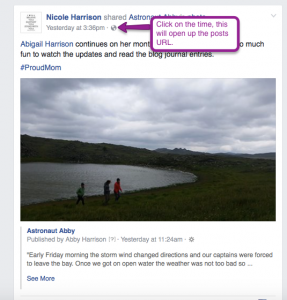
Scroll through your Newsfeed and find a post you would like to share. Click on the time under the person or business page name. When you do this the post will open up and you will have access to the post’s URL.
Graphic representing the first step in a process with an arrow

Step 2:

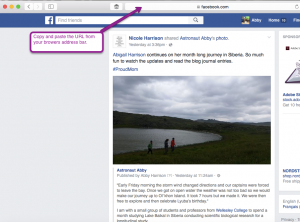
The post is now in your browser and you can click in the address bar and copy to copy and the post’s URL, so you will be able to schedule this post at a specified time.
Graphic representing the first step in a process with an arrow

Step 3:

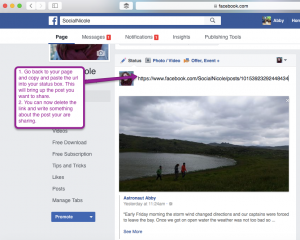
Now that you have copied the post’s URL go back to your page and paste the URL into your status box. The post will populate and then you can delete the link with your backspace button. Write something about the post in your status box.
Graphic representing the first step in a process with an arrow

Step 4:

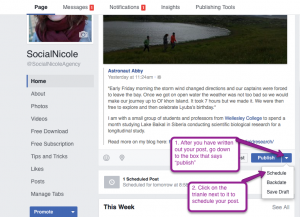
Now that you have the post written you are going to scroll down to where you will click on “publish” or the drop down triangle next to publish to schedule your post. Once you click on schedule you will select the date and time you would like your post to appear.
Graphic representing the first step in a process with an arrow

That is all you have to do to share someone’s post at a later time. This is a great little tip for us because now we don’t have to feel like we are over posting or over sharing. It gives you a way to balance out your posts. Give this tip a try. If you have any questions give us a call or reach out! We would love to answer any of your questions.

Previous article: Instagram for Business
Next article: Setting Up Instagram Reminders Via Buffer

Guides to Social Media Platforms Facebook

About Nicole Harrison

Hello. I am SocialNicole. I have purpose-built the SocialNicole Agency over the past 15 years to help brands level UP their social media and digital marketing. I am an innovator, explorer, and risk-taker who recognized the potential of social media for marketing long before it gained mainstream recognition. My pioneering spirit and years of trailblazing the social media & digital brand marketing landscape have uniquely positioned me as a leading expert in this field.

Digital Marketing Agency | Minneapolis

Copyright © 2026 SocialNicole.Com

  • About
  • Blog
  • Let’s Do This!
Minneapolis, MN
nicole@socialnicole.com
612-670-0337

Important Pages

  • About
  • Services
  • Blog
  • Work With Us

The Art Of Being Social

  • Scuba dive shop owner using a laptop symbolizing the future of blogging for business in 2026.
    The Ultimate Guide to Blogging for Business in 2026 (and Why You Should Still Do It!)November 4, 2025
  • Small business owner reviewing SEO analytics on laptop 2026
    SEO for Small Business 2026: How to Build Visibility in the Age of AIOctober 30, 2025
  • Google Page Experience update 2025 explained
    Everything You Need to Know About Google Page Experience in 2025April 21, 2025

Copyright © 2025 SocialNicole.Com